


|
OverviewCurrencies static table defines currencies that can be used on the site. Also in this table you can set the shop's default currency (the one in which you put prices), as well as fix exchange rates and right/left symbols. Getting startedTo edit available currencies go to System > Static Tables and click on 'Currencies' link. 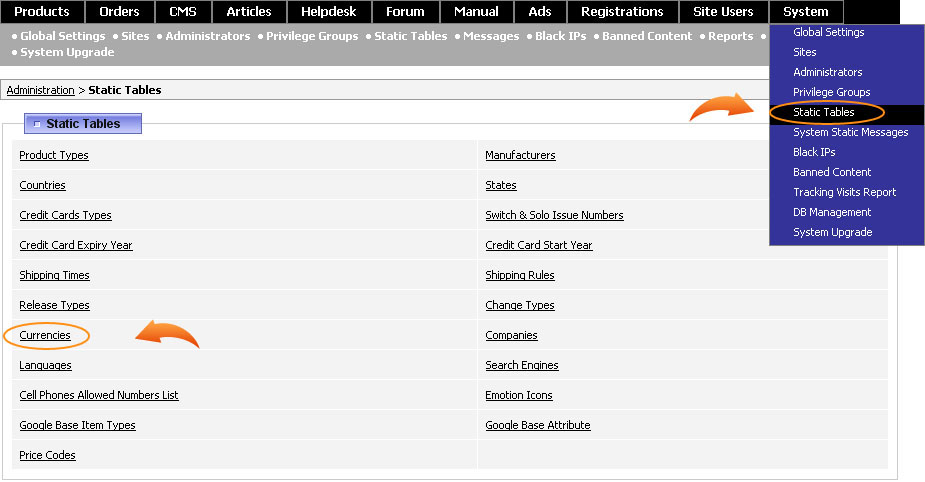 Currencies settingsYou can sort the displayed currencies in ascending or descending order by clicking on the arrows beside column names or the column itself, namely: ID, Currency Title, Code, Exchange Rate, Default. Note, this sorting is temporary and applies only on this page. 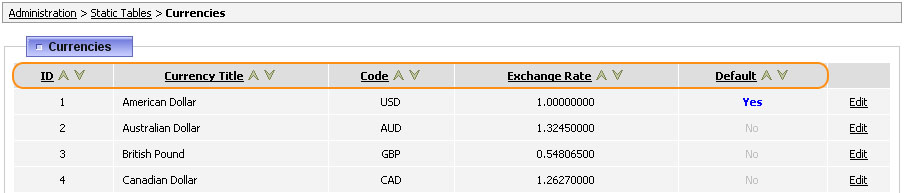 To add a new currency to this list, browse to the bottom of the page and click on Add New link. Next to Add New link you can see Update from currencysource.com - clicking this link automatically updates all currency rates in the shop. Note, by clicking this link a couple of times a minute you may receive an error so in that case it is recommended to wait for some time before the next attempt. Edit CurrencyTo change the settings of a specific currency, click on Edit Currency link. You will be offered the following fields: 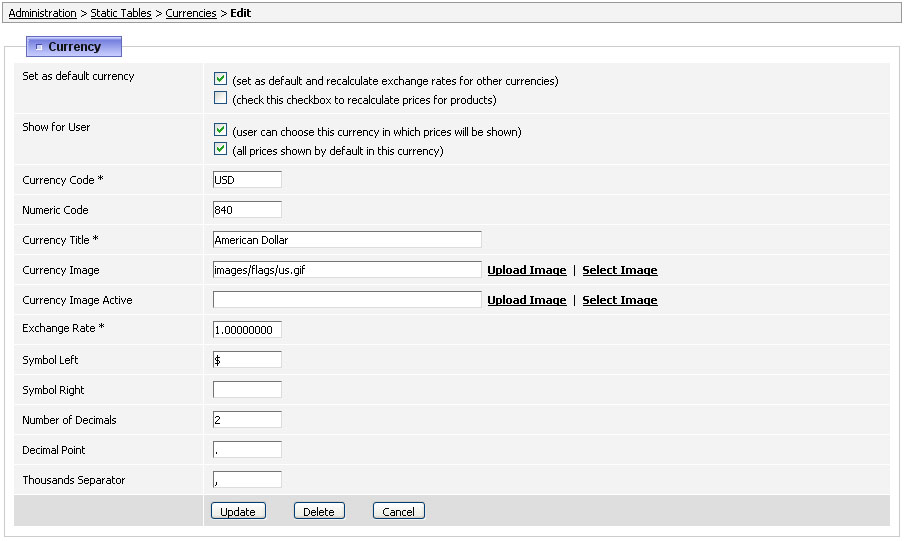 Set as default currency - this block contains such important settings as the default shop currency (the one in which prices are placed) and recalculate prices according to this currency rate:
Show for User - this block contains settings concerning user side:
Currency Code - is the international standard describing three-letter code. Numeric Code - is a three-digit code number assigned to the currency, in the same manner as there is also a three-digit code number assigned to each country. In case you are adding a new currency you may check its currency codes at this link: http://en.wikipedia.org/wiki/ISO_4217 Currency Title - is the name of the currency. Currency Image - specify here the image flag used with this currency. Currency Image Active - you may specify another image to indicate an active currency. Exchange Rate - is an exchange price towards the default currency. Symbol Left - you may put here a specific currency symbol which would be displayed to left from the price. Symbol Right - you may put here a specific currency symbol which would be displayed to right from the price. Number of Decimals - indicate in this field how many decimals are allowed, for example if put '2' and the product price is 14.4747, then it will be rounded to 14.47. Decimal Point - you can specfy here your own decimal separator symbol. Thousands Separator - by default it is comma but you can put in this field a space, for example, to display prices like this: 14 000. FAQI do not see any currency symbol next to the price even though there is a symbol sign in Edit Currency. Make sure to select on Edit Currency page the option (user can choose this currency in which prices will be shown) it will resolve the problem. We like having multiple currencies showing for our customers while they shop for product, however, our Authorize.net account only allows transactions in USD. Is there a way to have an automatic switch back to USD when the customer gets to the checkout page? First of all, we would recommend to place the Currencies block on the checkout page
so user may switch to USD if he wishes so. Another way, if the only possible checkout currency is USD, you may
hard-code this into the block_order_info.php script by putting after this string: The sales invoices created in .pdf are showing ↺ instead of the € sign itself. How can I correct that? Quite often when you try to save euro sign "€" for Euro currency your browser automatically converts the sign to its html code, so it looks like this ↺ and unfortunately, we can not change it as it's out of our control. Also there could be another problem that even though the correct symbol was saved in the database, current PDF system can't show it correctly, so we would recommend to use just EUR abbreviation in this case. We are looking now how to improve our PDF system to solve such issues with euro sign. Does the currency update occurs automatically or I have to click the "Update from floatrates.com" link every time? The currency rates are updated manually each time you press the "Update from floatrates.com" link. If you want the currency rates to be updated automatically, then you can set up the cronjob to do it for you. For example, the cronjob to run update script at 10 am daily should look like this:
|
|
|

